
User Management within the Crafty Platform
The Settings > Users section gives administrators a centralized place to manage everyone who has access to their organization's pantry account.
From this page, you can keeping your user list up to date helps ensure the right people have access to the tools they need while maintaining control over account permissions.
With this section, you can:
- View every user in your organization from one page.
- Quickly check which locations each user can access.
- Review user budgets, payment profiles, and permissions.
- Invite new team members without contacting Support.
- Ensure employees have the appropriate level of access as roles change.
How to Add New Users to the Platform
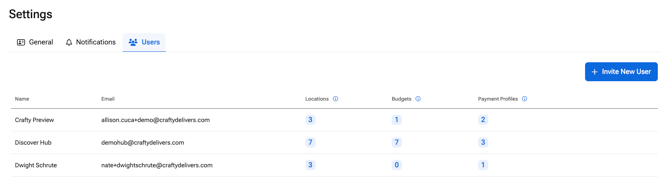
- Navigate to Settings > Users
- Click Invite New Users
- In the window include their:
- Name
- Role
- Select the locations you want them to have access to
- Then select Send Invite
How to View Permissions for Each User
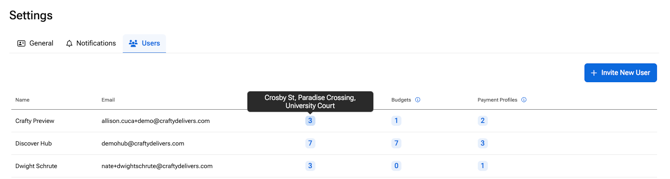
Each user profile provides visibility into the access and settings assigned to that individual. Depending on your organization's setup, you can review the user's name, email, assigned locations, budgets, and payment profiles.
- Navigate to Settings > Users
- Scroll to see the full list of users
- Hover over the numbers to see what locations that user has access to for
- Locations
- Budgets
- Payment Profiles
- You can always reach out to our team if you need to make adjustments
FAQs
Can multiple users access the Crafty Platform?
Yes. Multiple users can access the Crafty Platform, allowing teams to collaborate while maintaining individual permissions and access levels.
Who can invite new users?
Users with the appropriate administrative permissions can invite new users from the Settings > Users page.
Can I see which locations a user has access to?
Yes. The Users page displays the locations assigned to each user, making it easy to review and manage location access.
Can I review a user's permissions?
Yes. You can view each user's permissions, along with their assigned budgets and payment profiles, from the Users section.