
What is budget editing?
Budget editing lets you change your monthly office pantry budget and budget strategy directly in the Crafty Platform. With budget editing, you can:
- Update the budget amount for the current month and any future month
- Copy one month’s amount to every other month in a single click
- Change your budget strategy to match your spending goals
When finance updates numbers or your office has a busy season coming up, you can adjust your budget in minutes instead of waiting on a back-and-forth with your Crafty contact.
How do I edit my budget?
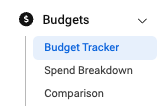
- Go to Budgets, then Budget Tracker.
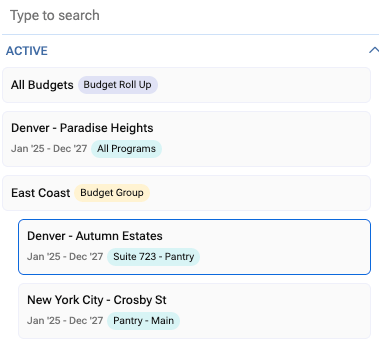
- Select an individual budget from the dropdown. The Edit budget button doesn’t appear when All Budgets or a budget group is selected.
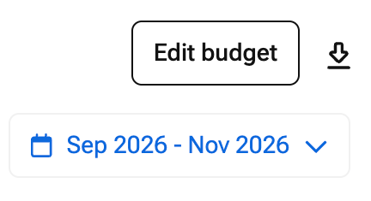
- Click Edit budget in the top right.
- A side pane opens with your budget name, location, and effective dates.
- Under How much per month?, type a new amount for any month you want to change. Each field starts with your current amount.
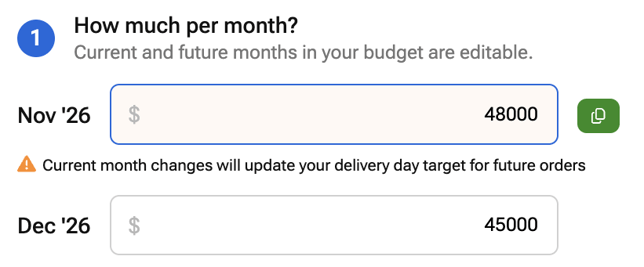
- Current Month: Changing this month updates your delivery day target for future orders this month. You’ll see a reminder under the field.
- Copy Button: Click the copy button next to a month to apply that amount to all other months.
- Shortcuts: Press Tab to move to the next month. Press Ctrl+Z to undo.
- Under Budget strategy, choose a strategy from the dropdown. This step is optional.
- Review the summary bar at the bottom of the pane. It shows how much your total changed, how many months you updated, and your old and new budget totals.
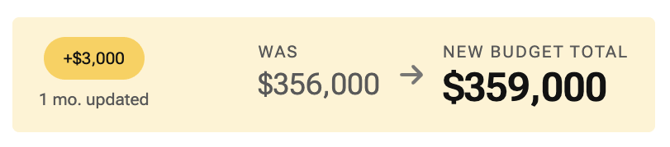
- Click Save Changes. A confirmation appears, and the Budget Tracker refreshes with your new amounts.
What can I change when editing a budget?
You can change:
- Monthly Amounts: The current month and every future month in your budget’s timeframe
- Budget Strategy: Save it, Stock it, or Optimize it
- Copy Across Months: One month’s amount applied to all the others
Contact your Crafty Team to change:
- Past months, which are locked to keep spend tracking accurate
- Non-product spend, like equipment and labor
- Budget dates, locations, or programs
- Headcount or per person per day budgets
- New budgets
Budget strategy options:
- Save it: Stay under budget while keeping a great pantry experience. Spend lands anywhere under budget.
- Stock it: Keep shelves full, even if that means going a little over. Spend stays within 10% above or below budget.
- Optimize it: Use every dollar without going over. Spend stays within 5% above or below budget.
If your budget doesn’t have a strategy yet, you’ll see Not set. Once you choose a strategy, you can switch between strategies but can’t go back to Not set.
What happens after you save:
- Your Team Stays Informed: Other users with access to the budget get an alert in the Crafty Platform showing the old and new totals and each month that changed.
- Your Crafty Team Is Notified: Your Crafty team sees the update, so everyone works from the same numbers.
Scenarios where budget editing is most helpful
- Responding to Finance Updates: Adjust your monthly amounts as soon as your finance team revises the annual or quarterly budget.
- Planning for Seasonal Swings: Raise or lower future months ahead of busy seasons, holidays, or slower summer stretches.
- Covering One-Off Events: Bump up a single month for an all-hands, offsite, or client visit without touching the rest of the year.
- Matching Spend to Your Goals: Switch your budget strategy when priorities change, from keeping shelves stocked to staying under budget.
- Resetting a Full Year at Once: Set one month’s amount and copy it across every remaining month to save time.
Budget Editing FAQs
Why don’t I see the Edit budget button?
Make sure you’ve selected an individual budget. The button doesn’t appear when All Budgets or a budget group is selected. The button also only appears on budgets you have access to that still have current or future months.
If you still don’t see it, budget editing may not be turned on for your company yet, or your budget may be set up in a way that can’t be edited in the Crafty Platform. Contact your Crafty Team to check.
Why is the Edit budget button greyed out?
Your budget doesn’t have a location attached yet. Contact your Crafty Team to add one, and the button will become active.
Can I change a past month’s budget?
No. Past months are locked to keep your spend tracking accurate, so they don’t appear when you edit. You can change the current month and any future month. Contact your Customer Success Manager for past-month adjustments.
What happens to my orders if I change this month’s budget?
Changing the current month updates your delivery day target for future orders this month. Orders already placed aren’t affected. You’ll see a reminder in the edit pane when you change the current month.