
Getting Started in the Crafty Platform
Getting started in the Crafty Platform only takes a few minutes. Completing the steps below will help ensure you receive important updates, accurately track your pantry budget, and give your employees a voice in shaping your pantry experience.
Here are the 4 steps you need to complete:
- Connect Slack
- Set Your Headcount
- Activate Employee Voting
- Add Any Additional Users
- Adjust Your Notificaiton Settings
1. Connect Slack
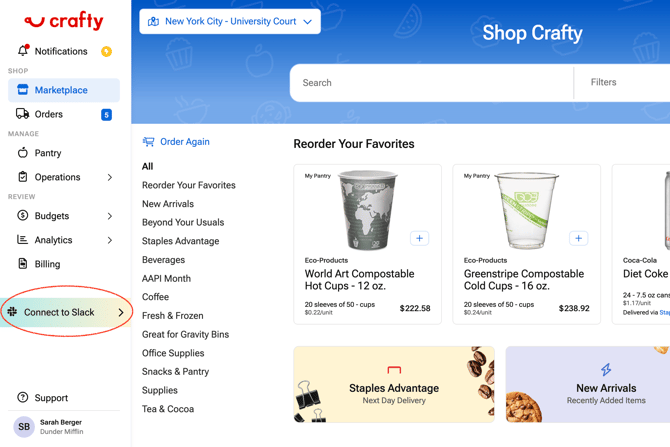
Receive real-time order, delivery, onboarding, and budget notifications directly in Slack so you can respond faster without monitoring your inbox.
To get started:
- Navigate to the Crafty Platform
- Select Connect Slack
- Request authorization from your Slack administrator (if required)
- Once approved, your notifications will begin appearing in Slack
Get a Step-by-Step Walkthrough ➞
2. Set Your Headcount
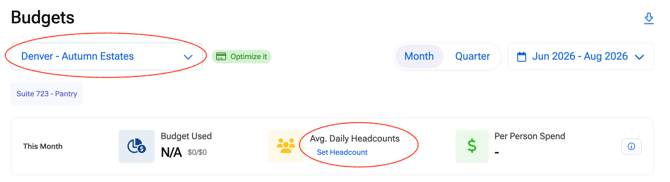
Adding your average daily headcount enables Per-Person, Per-Day Spend tracking so you can monitor your pantry budget more accurately as your office grows or changes.
To get started:
- Navigate to Budgets
- Select your location
- Choose Set Headcount
- Enter your estimated daily office attendance
- Save your updates
3. Enable Employee Voting and Print QR Signs

Employee Voting allows your team to vote for the snacks and beverages they want to see in the pantry. Once enabled, you can share a voting link or print QR code signs to encourage participation.
To get started:
- Navigate to My Pantry
- Select your location
- Click Enable Employee Voting
- Copy your unique voting link
- Download and print the QR code signs for your office
Get a Step-by-Step Walkthrough ➞
4. Invite Additional Users
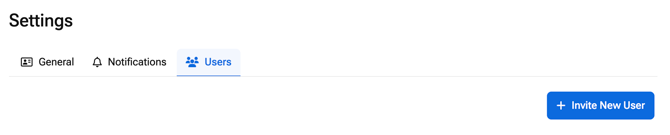
Give coworkers access to the Crafty Platform so they can help manage orders, budgets, notifications, and other account settings.
To get started:
- Click your profile in the bottom-left corner of the Crafty Platform
- Select Settings
- Navigate to the Users tab
- Select Invite New Users
- Enter their email address and the locations and preferences for their access
- Click Send Invitation
Once invited, they'll receive an email with instructions to create their account and access the Crafty Platform.
5. Update Your Notification Settings
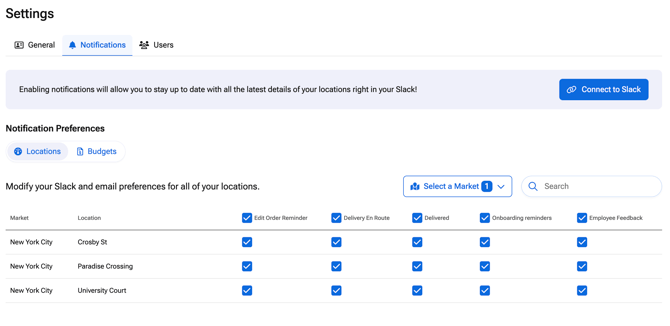
Customize how you'd like to receive updates about deliveries, orders, budgets, and more.
To get started:
- Navigate to Settings > Notifications
- Select a Market to narrow down by office
- Choose which email and Slack notifications you'd like to receive
- Save your changes
Get a Step-by-Step Walkthrough ➞
FAQs
Can I update these settings later?
Yes. You can return to the Crafty Platform at any time to update your Slack connection, headcount, notification preferences, or Employee Voting settings.
Who can configure these settings?
Users with the appropriate permissions for a location can configure these features. Some settings, such as Slack integration, are managed at the individual user level.
Is Employee Voting enabled automatically?
No. Employee Voting must be enabled separately for each location.