
How is Employee Voting Customizable?
Employee Voting lets your team vote on the office snacks, drinks, coffee, and supplies inside your pantry, with you in complete control. You decide what goes in your pantry, and you also control the voting experience to get the feedback you need.
Here’s how you can customize Employee Voting:
- Voting Limits: Give each employee anywhere from 1 to 10 votes per month in Settings. The default is 5.
- Timeline: You decide when voting runs by when you share your link or post your QR code. Take them down anytime. Your link and QR code never change, so you can reuse them for every collection without reprinting.
- Product-Specific Customizations:
- Category: Show or hide entire categories so voting stays focused on the areas you want feedback on.
- Product: Show or hide specific items, whether that’s due to price, type of product, or whatever your preferences are.
- Collection: Showcase a specific seasonal lineup, like Fall Trends, Halloween, or Black History Month, to add a layer of engagement to your seasonal swaps.
Below, we’ll focus on category-level customization: how to choose which parts of your pantry are up for a vote.
How To Customize Employee Voting by Category?
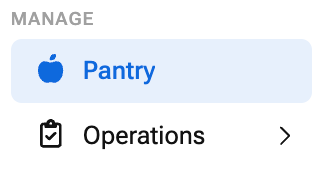
- Go to My Pantry and select your location
- In the Employee Feedback section, click Settings
Learn how to enable Employee Voting if you haven’t already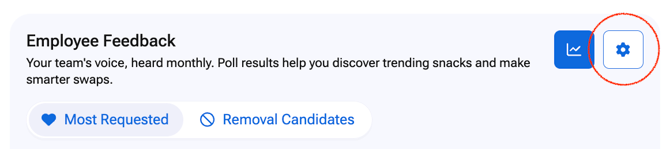
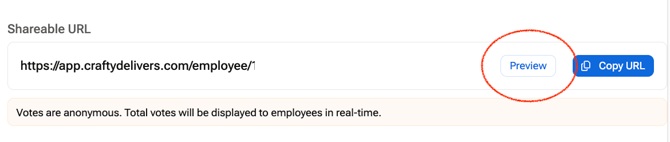
- Click Preview
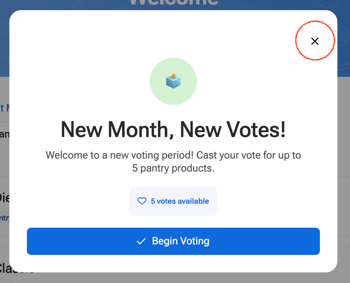
- Close the Begin Voting pop-up
- Click Edit Mode

- Hover over a category in the left-hand menu until the eye icon appears, and click the eye icon to show or hide the category
An eye with a slash means the entire category is hidden from voting.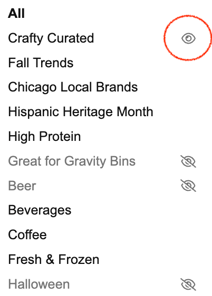
- Repeat for each category you want to show or hide
- Click Voting Mode to see voting exactly the way your employees will

- To share your voting experience, go back to My Pantry > Employee Voting Settings
- Click Copy URL or Download QR Code Sign to share your voting experience
Why Show or Hide Entire Categories?
Some parts of your pantry simply aren’t up for debate. Hiding them keeps the feedback focused on the decisions you’re actually trying to make.
- Protect Your Staples: Hide categories your team relies on every day, like coffee or supplies, so votes go where change is possible.
- Focus the Conversation: Show only the categories you’re rethinking, whether that’s snacks, drinks, or something new, so results are easier to act on.
- Avoid Decision Overload: Fewer categories means fewer choices for employees and a cleaner set of results for you.
Scenarios Where Category Voting Is Most Helpful
When you update your category list shapes what the results tell you. Here’s how to time it and put the feedback to work.
- Refreshing a Category: Use your consumption data to spot a category with room for a change, then show only that category for a month of voting. Swap in the winners, track consumption, and adjust if a new pick doesn’t land.
- Running a Quarterly Check-In: Open up a broader mix of categories once a quarter or at mid-year. Compare the results with your last round to see if your team’s priorities have shifted.
- Building Next Year’s Budget: Before budget planning, show categories you don’t currently offer and see where employees put their votes. Use the results to find gaps and back up your ask with real employee demand.
Get more ideas for putting Employee Voting to work!
Employee Voting Category FAQs
Does hiding a category remove it from my pantry?
No. Hiding a category only removes it from voting. Your pantry and orders stay the same.
Can I show a hidden category again later?
Yes. Click the eye icon next to the category in Edit Mode to show it again.
Can I hide individual products instead of a whole category?
Yes. You can show or hide specific products in Edit Mode for more precise control.
Should I show every category or just a few?
Both work. Show every category for a broad pulse check, or narrow it down when you need feedback on a specific decision.
Will voting results change my orders automatically?
No. Employee Voting gives you rankings and insights only. You stay in full control of what gets added or removed from your pantry.