
How is Employee Voting Customizable?
Employee Voting lets your team vote on the office snacks, drinks, coffee, and supplies inside your pantry, with you in complete control. You decide what goes in your pantry, and you also control the voting experience to get the feedback you need.
Here’s how you can customize Employee Voting:
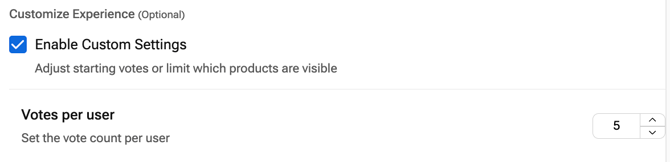
- Voting Limits: Give each employee anywhere from 1 to 10 votes per month in Settings. The default is 5.
- Timeline: You decide when voting runs by when you share your link or post your QR code. Take them down anytime. Your link and QR code never change, so you can reuse them for every collection without reprinting.
- Product-Specific Customizations:
- Category: Show or hide entire categories so voting stays focused on the areas you want feedback on.
- Product: Show or hide specific items, whether that’s due to price, type of product, or whatever your preferences are.
- Collection: Showcase a specific seasonal lineup, like Fall Trends, Halloween, or Black History Month, to add a layer of engagement to your seasonal swaps.
Below, we’ll focus on that first option: how to set the number of votes each employee gets every month.
How To Update the Number of Votes in Employee Voting?
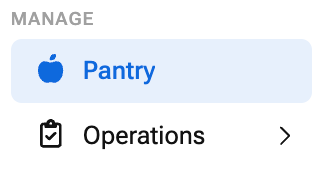
- Go to My Pantry and select your location
- In the Employee Feedback section, click Settings
Learn how to enable Employee Voting if you haven’t already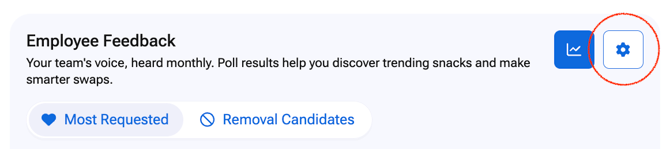
- Go to Customize and set the number of votes each employee gets per month, anywhere from 1 to 10
- Select Done to save your changes
How Many Votes Should I Give My Team?
The right number depends on the kind of feedback you’re after.
- Fewer Votes: When employees only have a few votes, they have to choose. You get a sharper signal on true favorites and a clearer picture of what your team would miss most.
- More Votes: When employees have more votes to spread around, they weigh in on more products. You get broader feedback, which helps when you’re testing a lot of new items at once.
Scenarios Where Adjusting Votes Is Most Helpful
When you change your vote limit shapes what the results tell you. Here’s how to time it and use the feedback.
- Featuring a Small Seasonal Collection: Lower your vote limit when you’re only showing a handful of seasonal items. Employees focus on their real favorites, so you know exactly which picks deserve a spot in your next order.
- Launching a Big Product Refresh: Raise your vote limit when you’re introducing a lot of new products. Employees can weigh in on more items, so you can see which new additions are worth keeping and which ones to skip.
- Deciding What to Cut: Lower your vote limit before trimming your assortment. Items that still earn votes when employees have to choose are keepers, while low-vote items are easy to rotate out.
Employee Voting Limit FAQs
How many votes does each employee get by default?
Each employee gets 5 votes per month by default. You can change this to anywhere from 1 to 10 in Settings.
Do votes reset each month?
Yes. Votes reset at the start of each month, and employees get a fresh set to use.
Can employees change their votes?
Yes. Employees can adjust and redistribute their votes anytime during the month.
What happens to unused votes?
Unused votes expire at the end of the month. They don’t roll over.
Can employees put all their votes on one product?
No. Votes must be spread across multiple products, so you get feedback on more than one item.